

You searched for ARIS 3. Chances are you need to log in, pay a fee, check your results, or reset a password — and you need to do it now. The official portal at aris3.udsm.ac.tz is the destination, but it doesn’t tell you how anything works.
That’s what this guide is for.
ARIS 3 is the University of Dar es Salaam‘s one-and-only academic management system. Registered the first time as a first-year student? Overwhelmed by the registration process? failed the first term and now you‘re locked out before the next fee deadline? This guide will take you through all the procedures as a student.
One thing that trips up first-year students: ARIS 3 is not the same as the UDSM admission portal (admission.udsm.ac.tz). The admission portal is for checking selection status and applying. ARIS 3 is what you use after you’ve been admitted and need to actually do things — register, pay, check grades.
Before we get started, just to clarify that: we only use the official URL. There are now fake login pages of this site, and providing your username and password on any of these pages are a potential security disaster.
Table of Contents
Quick Answers
- What is ARIS 3? -> The Dares Salaam U official Student Portal: aris3.udsm.ac.tz
-
How do I login?-> aris3.udsm.ac.tz; then Enter your registration number and password, click Login
- How do I pay fees? → Login → My Payment → select fees → save → generate control number → pay via mobile money
- How do I request a transcript? → Academic Menu → My Transcript Requests → Add New Request → pay control number → submit physical form at Sisal House Building
- ARIS 3 not loading? → It’s usually a peak-traffic issue — try early morning or late evening instead
What Is ARIS 3 UDSM?
ARIS 3 (Academic Registration Information System Version 3) is the University of Dar es Salaam‘s online student record system. Accessible on (aris3.udsm.ac.tz) and developed specifically for UDSM students and staff, ARIS3 provides user friendly access to all your academic and administrative details, including course registration, fee transactions, exam results and transcript requests from one convenient portal.
The “3” matters. This is the third iteration of the system. Earlier versions handled registration through more limited interfaces with fewer integrated payment options. ARIS 3 brought in full mobile money integration, hybrid account support for users who are both students and staff, and a more complete academic records module. It’s the version UDSM currently runs, and it’s where your academic life happens.
What ARIS 3 Does for Students
Here’s a quick map of what you can do inside the portal:
| Function | What You Can Do |
|---|---|
| Course Registration | Enrol in courses each semester; system checks prerequisites automatically |
| Fee Management | Generate control numbers and pay for tuition, NHIF, accommodation, and other fees |
| Academic Records |
View semester grades, cumulative GPA, unofficial transcripts |
| Transcript Requests |
Submit and track official transcript requests |
| Accommodation |
Apply for university housing and check room allocation status |
| Timetables |
Depending on your programme, view class and exam schedules |
| Profile Management |
Update personal and contact information |
| Notifications |
Receive system alerts on deadlines, results, and registration windows |
ARIS 2 vs ARIS 3: What Changed?
| Feature | ARIS 2 | ARIS 3 |
|---|---|---|
| Mobile money payments | Limited / not integrated |
Integrated mobile money options (e.g. M-Pesa, Tigo, Airtel, Halo, TTCL) |
| Hybrid accounts | Not available |
Combined access for users who are both students and staff |
| Academic records depth | Basic |
More detailed GPA tracking and records |
| Transcript requests | Manual / paper-based |
Online initiation with control number generation |
| Mobile accessibility | Desktop-focused |
Responsive design — works on smartphones |
| Accommodation applications | Separate process | Integrated within portal |
How to Login to ARIS 3 UDSM (aris3.udsm.ac.tz)
The login page is at: https://aris3.udsm.ac.tz/index.php?r=student%2Fuser%2Flogin
Bookmark it. Seriously. Searching for ARIS 3 every time wastes time and occasionally surfaces unofficial clones.
Student Login — Step by Step
- Open your browser and go to aris3.udsm.ac.tz
- Click the Student Login section on the homepage
- Your Username should be your Registration Number e.g. 2025-04-99954 and should be entered exactly as it appears on your admission documentation.
- Enter your password
- Make sure Caps Lock is off — passwords are case-sensitive
- Click Login
Done. You will be directed to your student dashboard, where you‘ll find links to your Academic Records, Course Registration and Payments, among others.
But what if you can’t get in? Check the troubleshooting section below — it covers the most common login errors.
Staff Login
Staff use a separate portal: https://aris3.udsm.ac.tz/staff
The login process works the same way — staff ID and password. If you’re new staff, your credentials are issued by the HR Office and activated through the ARIS Coordinator’s Office.
Login Tips for Mobile Phones
ARIS 3’s interface is responsive — it works on smartphones without needing a separate app. A few things that make mobile login smoother:
- Use Chrome or Firefox for the most stable experience
- If your page seems broken or your forms don‘t go through then try switching to desktop mode using your browsers setting
- Avoid internet password storage on shared or public computers.
- If you aren‘t on a fast connection, wait a few seconds after opening the dashboard before clicking anything.
How to Create Your ARIS 3 Account
New to UDSM? Your account doesn’t automatically exist — you need to create it once using the details from your admission.
New Student Account Setup
- Go to aris3.udsm.ac.tz and click Sign Up (or “Don’t have an account? Create one”)
- Select Student as your account type
- Enter your Registration Number — this was issued to you by the UDSM Admission Office. Use the exact number on your admission letter
- Fill in your full name (first name, middle name if applicable, last name — as they appear on your academic certificates)
- Type your email address. Type your registered mobile number.
- Make a username that you‘ll use to log in (if the dialog asks you to enter one).
- Choose a secure password a mixture of upper and lower case, numbers and a minimum of one symbol.
- Save your account
You should receive an Activation email or SMS from the ARIS system. If you don‘t, please check your spam folder or speak to the ARIS Coordinator‘s Office directly. (Please don‘t register again, we can get you locked out if you make duplicate registrations!)
Staff Account Setup
Staff account creation follows a similar process but uses a staff identification number rather than a student registration number. The ARIS system requires staff credentials to be pre-registered by the university’s HR Office before an account can be activated.
Hybrid Account — Student and Staff Combined
Some people at UDSM are both. Lecturers completing postgraduate programmes, for instance, hold both student and staff status simultaneously.
ARIS 3 addresses this by means of what is often termed a hybrid account, which allows you to toggle between Student and Staff views without signing out or signing back in. The initial registration must be established as a Staff account, then you must contact the ARIS Coordinator‘s Office to have a Student registration associated with your existing account. This isn‘t something you can customize all by yourself, but it‘s close switching back and forth is easy.
How to Pay Fees on ARIS 3 UDSM
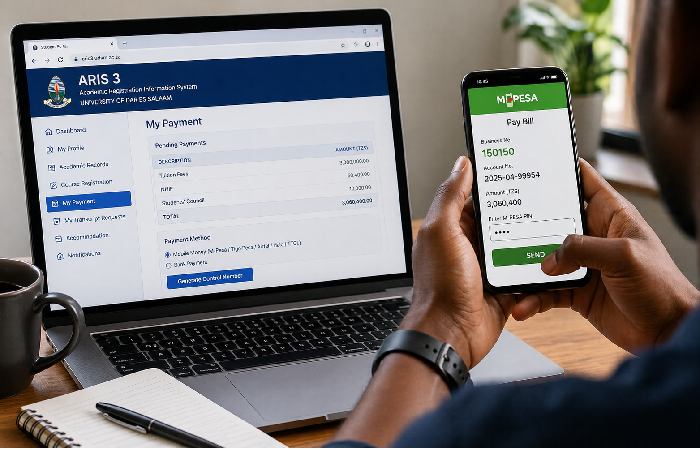
Let’s clear something up first: ARIS 3 absolutely supports fee payments. You log in, generate a control number for the fees you owe, and then pay that control number through your mobile money service. The payment reflects back into ARIS 3 automatically.
Here’s a list of common fee types you can usually pay through the portal:
| Fee Type | Category |
|---|---|
| Tuition Fee | Academic |
| Examination Fee | Academic |
| Registration Fee | Administrative |
| Accommodation Fee | Campus Services |
| Transcript Fee | Academic Records |
| Graduation Fee | Academic |
| Convocation Fee | Academic |
| NHIF (Medical Fee) | Health Insurance |
| Student ID Card Fee | Administrative |
| DARUSO Fee | Student Union |
| HESLB-related charges | Loan Board |
| Quality Assurance / TCU Fee | Regulatory |
| Penalty and Fines | Disciplinary |
| Lost ID Fee | Administrative |
| Appeal Fee | Academic |
How to Generate a Control Number
- Login to your ARIS 3 account
- Navigate to My Payment
- Select the fees or services you want to pay — tick the checkboxes
- Specify the amount where required
- Click Save to generate your Control Number
That control number is your payment reference. Write it down or screenshot it. You’ll enter it in your mobile money app to complete the payment.
One thing worth knowing: control numbers aren’t permanent. Pay promptly after generating one — if it expires before you pay, you’ll need to generate a new one.
Paying with M-Pesa
- Dial *150*00#
- Select Lipa kwa M-Pesa
- Choose the option for government or institutional payments (for example, Malipo ya Serikali)
- Enter your Control Number when prompted
- Enter the exact amount
- Confirm the transaction
You’ll receive an SMS confirmation. Check ARIS 3 — the payment should reflect within a short time.
Paying with Tigo Pesa
- Dial *150*01#
- Select the “Pay Bill” or similar payments menu
- Choose the option for government or institutional payments, if available
- Enter your Control Number
- Enter the amount and confirm
Paying with Airtel Money
- Dial *150*60#
- Select the “Lipia Bili/Pay Bill” or similar payments menu
- Choose the option for government or institutional payments, if available
- Enter your Control Number
- Confirm the payment
Other Mobile Money Options
ARIS 3 also supports Halo Pesa and TTCL Pesa. The process follows the same pattern — access your government payments or utility bills menu, enter your control number, confirm. If you’re unsure of the menu path for your specific operator, your network provider’s customer service can walk you through it.
And if a payment doesn’t reflect in ARIS 3 after a few hours? Don’t generate a second control number. Check your ARIS payment history first, confirm your mobile money receipt, and if there’s a discrepancy, contact the UDSM Bursary with your transaction reference.
How to Register for Courses on ARIS 3
Course registration opens at the start of each semester — and it closes. Miss the window, and you may not be registered for the courses you need. ARIS 3 doesn’t send reminders. Check the academic calendar and act early.
Missing registration deadlines or prerequisite checks can delay your graduation, so treat this section as non‑optional.
Step-by-Step Course Registration
- Login to your ARIS 3 account
- Click the menu icon (four bars, top right of the screen)
- Select Registration from the menu
- Choose My Course Registration
- Browse courses available terms of search include department, course number, or instructor
- Choose the courses to enroll in
- ARIS 3 will automatically verify if you have the prerequistes For example, if you haven‘t taken the prerequisite, you can‘t register for the course.
- Confirm and proceed according to the screen instructions to finish.
Check your registration list after saving. If a course doesn’t appear, it may be full — contact your department directly. There’s no waiting list system in ARIS 3.
What Happens If a Course Is Full
ARIS 3 enforces capacity limits. If a course is full, you simply won’t be able to register for it through the portal. The fix isn’t a workaround inside ARIS — it requires going to your department and requesting manual enrolment or a seat addition. Your department or Dean’s Office handles this. ARIS 3 will only show the outcome once a change is made administratively.
How to Check Your Results on ARIS 3
Results are published through the portal as soon as they’re released by the university. So first question: are you sure results have actually been released? ARIS 3 shows nothing for unreleased results — not even a placeholder.
Assuming results are out:
- Login to your ARIS 3 account
- Go to the Academic tab
- Select My Course and Results (or similar — menu labels may vary slightly by semester)
- Choose the relevant academic year and semester
- Your grades and cumulative GPA will display
Results are only available after they are formally posted by the university for that semester, so if no results appear, make sure that the published date has passed.
Reading Your Results and GPA
UDSM uses a standard letter grade system. Your cumulative GPA is calculated across all semesters and updated each time new results are published. ARIS 3 shows both the per-course grade and the running cGPA — check both. If a course result is missing, it’s either not yet published or there’s a registration discrepancy.
What to Do If a Result Is Missing
Don’t assume ARIS 3 is wrong. First, confirm the course appeared on your registered course list. If it did and the result is still missing after the official results publication date, contact your department’s examination officer — not the ICT helpdesk. Missing results are usually an academic records issue, not a system error.
How to Request a Transcript on ARIS 3 UDSM
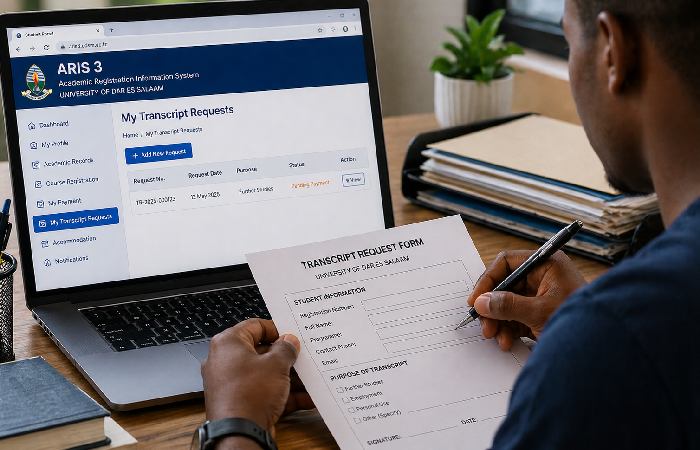
This is the section most guides skip. It’s also the process most students get wrong — because it’s not fully online. There’s a physical step at the end that you can’t avoid.
According to UDSM’s official transcript request procedures, here’s the full process:
- Login to your ARIS 3 account
- Go to Academic Menu and click “My Transcript Requests”
- Click “Add New Request”
- Fill in the pop-up form — including the number of copies you need and your permanent address
- Save your request
- Shortly after saving, you’ll receive your Control Number
- Pay the transcript fee using your preferred mobile money service (see the fee payment section above)
- Download the Transcript Request Form from the UDSM website, fill it in, and attach any required documents
- Submit the completed form physically at the Sisal House Building (formerly the School of Education Building) on the UDSM campus
Remote Submission by Email
If you’re not able to submit in person — you’re outside Dar es Salaam, or you’re an international student — UDSM does accept remote submission. Send your completed form and attachments to the designated email address provided on the official transcript procedures page. Make sure payment is confirmed and your control number is included in the submission.
One practical note: don’t submit your transcript request form before paying. The processing only begins once payment is confirmed against your control number in the system.
How to Reset Your ARIS 3 Password
Locked out? Password expired? It happens to most students at some point — usually right before a deadline.
The official password recovery process is a 4-step verification system:
- Go to aris3.udsm.ac.tz and click “Forgot Password?” on the login page
- Type into the User Information Verification form your registered email address and phone number associated with your account
- Verify by following these steps (the system will sent a code or a link to your registered email or mobile contact)
- Set your new password and login
What to Do If Your Password Has Expired
What to Do If Your Registered Email or Phone Doesn’t Work
This one’s harder. If your email address is outdated or your phone number has changed since registration, the verification system can’t reach you. In this case:
- Visit the ARIS Coordinator’s Office on campus with your student ID
- Request a manual account recovery
- Bring proof of identity — your student ID card is sufficient
Don’t try to create a second account. It won’t resolve the issue and may complicate your records further.
Troubleshooting Common ARIS 3 Problems
Most ARIS 3 problems fall into one of a few categories. Here’s how to handle each one.
“This Site Can’t Be Reached” — Fix
Before assuming the system is broken, check when you’re trying to access it. ARIS 3 experiences significant traffic spikes during:
- Semester registration windows
- Exam results release dates
- Fee payment deadlines
In these hours the server is over-burden and the site becomes very slow or temporarily unavailable. It‘s not down just busy. Practical solution: try before 7am or after 9pm. Traffic is very low at those hours.
If you’re outside a peak period and still can’t reach the site:
- Verify your internet connection perform a quick speed test
- Empty the browser cache and cookies.
- Try a different browser. (Chrome and Firefox browsers are generally more effective)
- Try a different machine.
- Verify that classmates are experiencing the same problem if they are, then it‘s probably not that the website is temporarily overloaded.
- Check if a classmate can access the location or look out for outage notifications on UDSM front pages
“Account Not Active” Error
Most common is when people have set up an account but not been able to activate it using the email/SMS confirmation step. Please check the message inbox (including spam folders) for an activation email. Otherwise, get in touch with the ARIS Coordinator‘s Office.
Name Not Appearing in the System
Occasionally you will have new students appear not to be able to find their name when setting up accounts or creating test logins. This delay in being able to locate their names is due to the delay in loading your admission data into ARIS 3 from the Admission Office and is not an error on your part. Please wait a day or two and try again. If still not visible one week on from your scheduled intake date please call the UDSM Admission Office and supply your admission letter.
Session Expired Error
ARIS 3 has an auto log out if you remain inactive for a period of time. If you kept the browser open without clicking on anything, you will see session expiry message. Simply just log on again no data lost to when you saved the completed task.
When to Contact the ICT Helpdesk
Contact UDSM’s ICT support only after you’ve tried the above steps and the problem persists. Have these ready when you reach out:
- Your Registration Number
- A screenshot or description of the error message
- The browser and device you’re using
- The time and date the problem occurred
The ICT helpdesk handles system-level errors. For academic record issues (missing results, wrong grades), contact your department. For account credential issues beyond self-service recovery, contact the ARIS Coordinator’s Office.
ARIS 3 Security — Avoid Fake Login Pages
This section isn’t dramatic — but it is important.
Phishing pages that look like the ARIS 3 login form do exist. They’re designed to capture your student credentials. Once someone has your registration number and password, they have access to your academic records, payment history, and fee payment functions.
The only legitimate ARIS 3 URL is: aris3.udsm.ac.tz
Verify the address bar. Make sure it always ends in.udsm.ac.tz (not.com, not.net, not.org). If you followed a link in email or from a searchresult and the address is even just a little different then close the tab and go directly.
A few other practices that help:
- Don’t save your ARIS 3 password in a shared computer’s browser
- Use a password that’s unique to ARIS — don’t reuse it from other accounts
- If you think your account has been compromised, change your password immediately and contact the ARIS Coordinator’s Office
UDSM’s ICT team will never ask for your password via email, phone call, or SMS.
Frequently Asked Questions
Q: What is ARIS 3 UDSM?
A: ARIS3 (Academic Registration Information System v3) is the Dar es Salaam University STUDENTS official website on www. Aris3.udsm.ac.tz. It is used to register courses, pay reg fees, obtain exam results, request transcripts, apply for accommodation and more.
Q: How do I login to ARIS 3 UDSM?
A: Access the system at aris3.udsm.ac.tz, input your Registration Number as your log in and input your password, then click Login. Workers should access the independent on aris3.udsm.ac.tz/staff.
Q: How do I reset my ARIS 3 password?
A: Hit the “Forgot Password?” link on the login screen, input your email and phone number, and go through the 4-step verification process. If contact information is no longer valid, go to the ARIS Coordinator‘s Office to get registered.
Q: How do I generate a control number on ARIS 3?
A: Login → My Payment → select the fees you want to pay → click Save. Your control number generates and appears on screen. Use it in your mobile money app to complete payment.
Q: How do I pay fees using M-Pesa on ARIS 3 UDSM?
A: Generate a control number in ARIS 3 first. Then dial 15000# on your phone, select Lipa kwa M-Pesa, choose the government or institutional payments option (such as Malipo ya Serikali), enter your control number, enter the amount, and confirm.
Q: How do I request a transcript on ARIS 3?
A: Login → Academic Menu → My Transcript Requests → Add New Request → fill in the form → save to get your control number → pay the fee → download the Transcript Request Form → submit it physically at Sisal House Building (or by email if you can’t attend in person).
Q: What is a hybrid ARIS 3 account?
A: The reason for creating a hybrid account is so that a student/staff user has the capabilities of accessing both the Student and Staff dashboards. You automatically log in (without “logging off”) to the other dashboard. To get this account, contact the ARIS Coordinator‘s Office. You already have to have created a staff account.
Q: Why is ARIS 3 not working or loading?
A: Usually it’s peak traffic — the server slows down during registration windows, results release, and fee deadlines. Try early morning or late evening. If it’s a persistent issue outside those windows, clear your cache, switch browsers, or try a different device and connection.
Q: How do I register for courses on ARIS 3?
A: Login->menu icon(top right)->Registration->My Course Registration-> you choose your courses->follow the instructions. ARIS 3 will automatically alert you if pre-requisite of the course is not completed so that you cannot select the course you are not eligible to register for.
Q: How do I check my exam results on ARIS 3 UDSM?
A: Login → Academic tab → My Course and Results → select the academic year and semester. Results only appear after the university officially publishes them. If a result is missing after publication, contact your department’s examination officer.
Conclusion
ARIS 3, can be considered as your operating system of academic life with the University of Dar es Salaam. All most every important activities register courses, pay fees, checking results, request transcript is done through the portal at aris3.udsm.ac.tz.
The system works. But it is good to have the procedures written down, to understand how the mobile money payment system works and what to do when your site doesn‘t load at 11pm just before the registration deadline.
Use this guide as your reference point. Bookmark the official portal. And if you hit a problem that isn’t covered here, the UDSM ICT helpdesk and the ARIS Coordinator’s Office are your two escalation paths.
For official UDSM payment procedures, refer to UDSM’s official payment guidance. For transcript requests, use UDSM’s official transcript request page as the authoritative source for any process changes.