
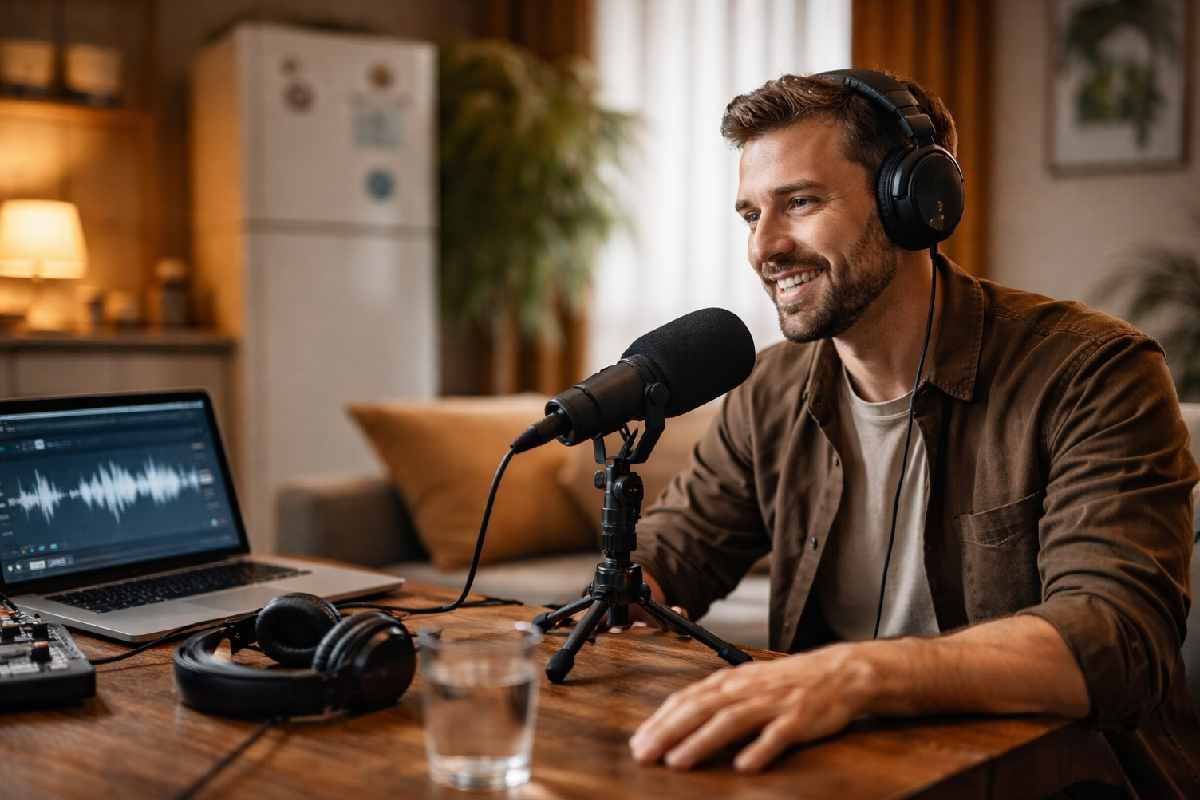
You recorded an interview in your living room. The fridge is humming, a delivery truck just rumbled past, and the ceiling fan is doing its best impression of a helicopter. The content was great. The audio? Painful.
Adobe Speech Enhancer is designed to fix exactly this. It’s a free, AI-powered tool inside Adobe Podcast that takes messy spoken audio and makes it sound like you recorded in a treated studio — automatically, in minutes, from your browser.
But does it actually deliver? And when does it fall short?
This guide covers everything: what Adobe Speech Enhancer is, how to use it step-by-step, the real differences between V1 and V2, where it struggles, what the free tier actually gives you, and which alternatives are worth considering if it doesn’t fit your workflow.
Table of Contents
Quick Answers:
- What is it? → An AI tool in Adobe Podcast that removes background noise, echo, and distortion from spoken audio.
- Is it free? → Yes — free tier gives 1 hour/day, 30-min max per file, 500 MB limit.
- V1 or V2? → V2 preserves natural voice better but can introduce artifacts. V1 gives warmer, “broadcast” sound but alters voice color more.
- When does it fail? → Already-clean audio, crosstalk-heavy recordings, singing, and non-speech content.
- Best alternative? → Descript for all-in-one editing; Cleanvoice for filler word removal; Auphonic for professional mastering.
What Is Adobe Speech Enhancer?
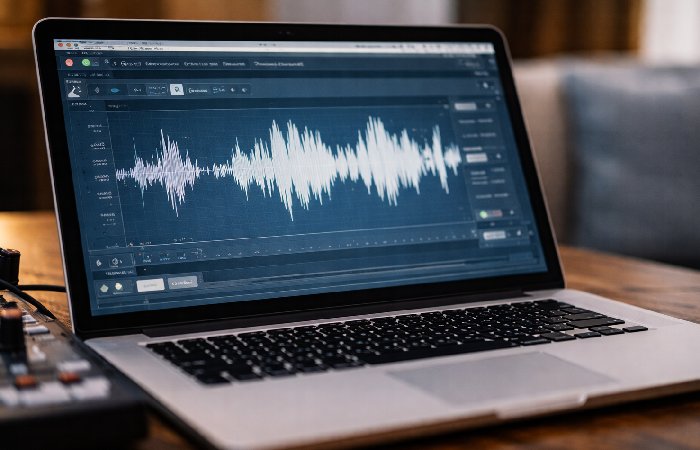
Adobe Speech Enhancer is an AI-powered audio enhancement tool that’s part of Adobe Podcast. It processes uploaded audio or video files to remove background noise, room echo, and audio distortion — making spoken recordings sound as though they were captured in a professional studio environment.
The tool runs entirely in the browser. No software installation is required. You upload a file, the AI processes it, and you download the cleaned version. That’s it.
Where It Lives — Adobe Podcast Platform
Adobe Speech Enhancer sits within Adobe Podcast, a suite of AI audio tools that also includes transcription and a microphone check feature. While “Adobe Podcast” suggests it’s only for podcasters, the Enhance Speech tool works for any spoken audio — interview recordings, lecture captures, voiceover tracks, meeting recordings, and even the audio tracks of video files (MP4, MOV).
You access it at podcast.adobe.com using a free or paid Adobe account.
How the AI Actually Processes Your Audio
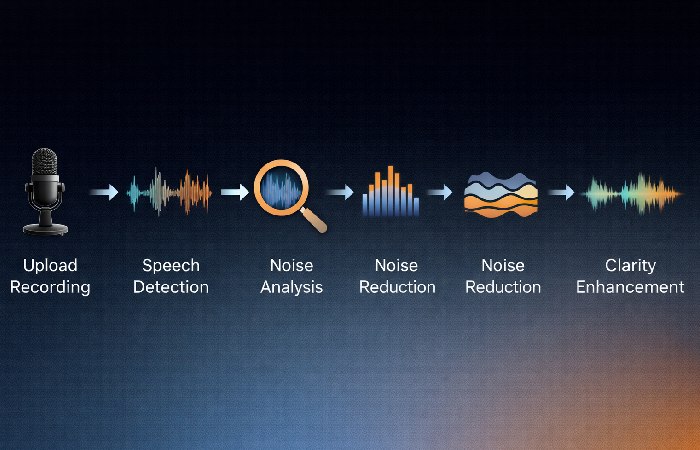
Under the hood, Adobe’s AI uses a trained machine learning model to separate speech from everything else in an audio signal. The system analyzes the frequency spectrum of your recording, identifies which components are human speech, and suppresses or removes the rest — background hum, room reverberation, wind noise, keyboard clatter, and other environmental sounds.
The V1 model applied a “broadcast-style” EQ coloration, making voices sound polished but noticeably different from the original. The V2 model (released November 2024) takes a different approach: it prioritizes preserving the natural characteristics of the original voice while isolating speech from noise more aggressively.
Neither model is universally better. More on that below.
Key Features Breakdown
Noise and Echo Removal
This is the core promise. Adobe Speech Enhancer handles:
- Constant background noise — air conditioning, fan hum, room tone, electrical buzz
- Intermittent noise — traffic, construction, doors closing, keyboard typing
- Room echo and reverberation — especially effective for untreated rooms with hard surfaces
- Low-level distortion — clipping and mild audio quality issues
The tool excels with steady-state noise (a consistent hum or drone). It handles intermittent noise reasonably well but can occasionally suppress brief speech segments that overlap with sharp transient sounds.
Supported File Formats
| Format | Free Tier | Premium |
|---|---|---|
| WAV | ✅ | ✅ |
| MP3 | ✅ | ✅ |
| MP4 (video) | ❌ | ✅ |
| MOV (video) | ❌ | ✅ |
| Max file size | 500 MB | 1 GB |
| Max duration | 30 minutes | 2 hours |
Enhancement Strength Slider (V2)
V2 introduced an adjustable enhancement strength slider — and this is arguably the most important feature most guides never mention.
At low settings (10–30%), the tool applies gentle noise reduction while preserving maximum voice naturalness. At high settings (70–100%), it aggressively strips away background audio, delivering the cleanest result but increasing the risk of artifacts.
Practical recommendation: Start at 30–40% and increase only if needed. Most recordings sound best in the 30–60% range. Going above 70% should be reserved for severely noisy source material.
Batch Upload Support
Premium users can upload multiple files at once for batch processing — useful for podcasters with multi-episode backlogs or educators processing a semester’s worth of lecture recordings.
How to Use Adobe Enhance Speech (Step-by-Step)
Step 1 — Create a Free Adobe Account
Go to podcast.adobe.com and sign in with an Adobe ID. If you don’t have one, creating a free account takes under two minutes. No credit card required for the free tier.
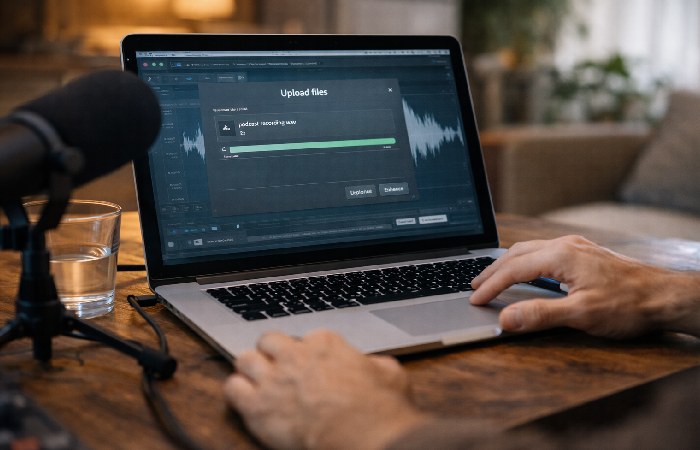
Step 2 — Upload Your Audio or Video File
Click “Enhance Speech” from the homepage or navigate to Tools → Enhance Speech. Drag and drop your file or click “Choose files” to browse.
Free accounts: WAV or MP3 only, max 500 MB, max 30 minutes, up to 1 hour of total processing per day.
Step 3 — Process and Preview
The AI processes your file automatically. Processing time varies — a 10-minute file typically takes 1–3 minutes depending on server load.
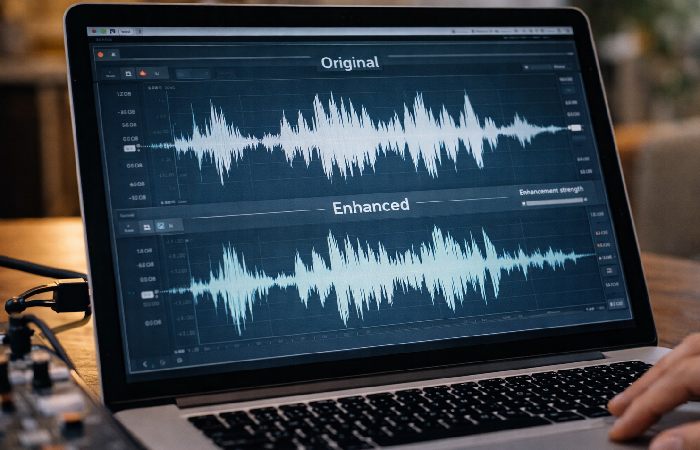
Once complete, you’ll see a player with toggle options to compare the original and enhanced versions side-by-side. Listen carefully to check for artifacts, voice color changes, or any clipping before downloading.
Pro tip: If using V2, adjust the strength slider before processing. Start at 30% for recordings made with a decent microphone in a moderately noisy room. Only increase if the background noise is still unacceptable.
Step 4 — Download the Enhanced File
Click “Download” to save the processed file. The filename will indicate it’s the enhanced version. The original file is not modified — you always retain your source audio.
Pro Tips for Best Results
- Record the best audio you can first. Enhancement is a rescue tool, not a replacement for good recording practice. A $30 USB microphone in a quiet corner will always outperform a laptop mic in a noisy café, even with AI enhancement.
- Measure first, process later. Listen to your raw audio before enhancing. If it’s already reasonably clean, enhancement may make it worse (more on this below).
- Export processed audio as WAV if possible. MP3 re-encoding after enhancement adds another layer of lossy compression.
Enhance Speech V1 vs V2 — Which Should You Use?
Adobe still offers both V1 and V2 processing, and choosing the right one matters more than most guides let on.
| Feature | V1 | V2 |
|---|---|---|
| Processing approach | “Broadcast-style” EQ coloration | Natural voice preservation |
| Voice color | Warmer, more polished — but altered from original | Closer to the original voice |
| Noise removal aggression | Moderate | More aggressive |
| Artifact risk | Lower — smoother output | Higher — robotic sound, clipping at high strength |
| Strength slider | Not available | Adjustable |
| Crosstalk handling | Reasonable | Struggles — ducks laughter, suppresses overlapping speech |
| Best for | Semi-clean recordings, solo speakers, warm tone preference | Noisy environments, voice-matching projects, adjustable control |
When V1 Is Actually Better
If you record with a decent microphone in a home studio with moderate room noise, V1 often produces a more pleasing result. Its “broadcast” coloration smooths the voice in a way that many podcasters prefer — it sounds polished and radio-ready.
V2, applied to the same semi-clean source, can make voices sound flatter or slightly processed, especially if the strength slider is above 50%.
Known V2 Issues
V2 is not without problems. Based on user reports from Reddit’s r/podcasting and r/AdobePodcast, as well as Adobe’s own community forums:
- Robotic / digital-sounding output — Occurs most frequently when enhancement strength is high or when the source audio is already relatively clean.
- Sentence clipping — V2 occasionally cuts off the last syllable or two of sentences, making speech sound abrupt.
- Crosstalk suppression — In multi-speaker recordings where participants talk over each other, V2 can aggressively duck one speaker’s voice while the other speaks, creating unnatural volume dips.
- Phantom echoes — Some users report a faint echo or doubling effect in the processed output that wasn’t present in the original.
- “Tinny” quality — Particularly noticeable when processing already-clean audio. V1 handles clean sources more gracefully.
Bottom line: Start with V2 if your recording is noisy and you need aggressive cleanup. Switch to V1 if the output sounds unnatural, or if your source audio is already decent.
Free vs Premium — Is the Paid Plan Worth It?
Free plan (Enhance Speech):
- Max file duration: 30 minutes
- Max file size: 500 MB
- Max hours per day: 1 hour
- Audio only, no video, no bulk upload, no strength slider
Premium plan (Enhance Speech):
- Max file duration: 2 hours
- Max file size: 1 GB
- Max hours per day: 4 hours
- Video support (MP4, MOV, etc.), bulk upload, enhancement strength slider, V1/V2 selection
Who Should Upgrade (and Who Shouldn’t)
Upgrade if you process audio daily, work with video files, need batch processing for large catalogs, or want the strength slider to fine-tune output quality within a 4-hour daily limit.
Stay free if you produce weekly or bi-weekly podcast episodes under 30 minutes. The 1-hour daily limit and 30-minute file cap comfortably cover most indie podcasters and many solo creators.
When Adobe Speech Enhancer Doesn’t Work Well
Every review site lists the pros. Here are the situations where the tool genuinely falls short — because knowing when not to use a tool is just as valuable as knowing how to use it.
Already-Clean Audio (Over-Processing Risk)
If your recording was made with a quality microphone in a treated or quiet room, applying enhancement — even at low settings — can make it worse. The AI may introduce a tinny quality, flatten dynamic range, or create subtle artifacts that weren’t in the original.
Rule of thumb: If your raw audio sounds good to your ear, don’t enhance it. It’s a rescue tool, not a polish.
Multiple Speakers Talking Over Each Other
This is V2’s biggest documented weakness. When two speakers overlap — laughing during each other’s sentences, interrupting, or cross-talking — V2 struggles to separate the voices cleanly. The result is often one voice being suppressed or volume levels fluctuating unnaturally.
For interview-style podcasts with a lot of back-and-forth, consider recording each speaker on a separate track and enhancing tracks individually.
Singing and Non-Speech Audio
Adobe’s model is trained exclusively on speech. Applying it to singing, music, ambient sound design, or sound effects will produce unpredictable and generally poor results. Adobe explicitly states that the tool is not compatible with singing.
The “Garbage In, Garbage Out” Reality Check
AI enhancement has limits. If your source recording is severely clipped, heavily distorted, or captured on a phone speaker half a room away from the subject, no amount of processing will produce professional output. The tool can significantly improve marginal audio, but it cannot resurrect broken audio.
Best Alternatives to Adobe Speech Enhancer
Adobe’s tool is excellent for one-click noise removal, but it’s not the best option for every workflow. Here’s how the leading alternatives compare:
| Tool | Best For | Noise Removal | Filler Word Removal | Editing Features | Free Tier | Price (Paid) |
|---|---|---|---|---|---|---|
| Adobe Speech Enhancer | Quick noise cleanup | ⭐⭐⭐⭐⭐ | ❌ | ❌ | 1 hr/day | $9.99/mo |
| Descript | All-in-one editing | ⭐⭐⭐⭐ | ✅ | Full editor | Limited | $24/mo |
| Cleanvoice AI | Speech-specific cleanup | ⭐⭐⭐⭐ | (specialized) | Basic | 30 min trial | $11/mo |
| Auphonic | Professional mastering | ⭐⭐⭐⭐ | ❌ | Leveling, EQ | 2 hrs/mo | $11/mo |
| VEED.io | Video creators | ⭐⭐⭐ | ❌ | Video editor | Limited | $18/mo |
| Clipchamp | Free option (Microsoft) | ⭐⭐⭐ | ❌ | Video editor | Generous | Free/Paid |
| LALAL.AI | Stem separation | ⭐⭐⭐⭐ | ❌ | ❌ | 10 min | $15/mo |
| Audo Studio | Speed + simplicity | ⭐⭐⭐⭐ | ❌ | ❌ | Limited | $12/mo |
Best for All-in-One Editing — Descript
If you need more than noise removal — filler word removal, text-based editing, screen recording, overdub/voice cloning — Descript is the strongest all-in-one platform. Its “Studio Sound” feature handles noise reduction well (though less aggressively than Adobe) and preserves a more natural voice quality. The trade-off: it’s more expensive and has a learning curve.
Best for Speech-Specific Cleanup — Cleanvoice AI
Cleanvoice fills the gap Adobe leaves open: it removes filler words (“um,” “uh”), mouth clicks, long pauses, and breath sounds in addition to background noise. It supports 20+ languages and is purpose-built for podcast post-production. If your main issue is speech performance cleanup rather than environmental noise, Cleanvoice is the better fit.
Best Free Option — Clipchamp
Microsoft’s Clipchamp includes an AI audio enhancer within its free video editor. It’s less powerful than Adobe for pure noise removal, but for users who need basic enhancement bundled with video editing at zero cost, it’s a practical choice.
Best for Professional Post-Production — Auphonic
Auphonic goes beyond noise removal into intelligent audio mastering — automatic loudness normalization (LUFS targeting), adaptive leveling, noise and hum reduction, and filtering. Podcasters who publish to platforms with loudness standards (Spotify, Apple Podcasts) will appreciate Auphonic’s automated compliance features. It provides 2 hours of free processing per month.
Adobe Ecosystem Integration — Premiere Pro & Audition Workflow
Using Enhance Speech as a Pre-Edit Step
Many content creators already work inside Adobe Premiere Pro or Audition. Adobe Speech Enhancer integrates into this workflow as a pre-processing step:
- Export your raw audio from Premiere Pro or Audition as a WAV file.
- Upload to Adobe Podcast → Enhance Speech and process.
- Download the enhanced file and import it back into your timeline, replacing the original audio track.
This roundtrip adds a few minutes but can dramatically improve the audio foundation before you apply compression, EQ, or other effects in your DAW.
Roundtripping Audio Between Apps
For Creative Cloud subscribers, Adobe has been progressively tightening integration between Podcast and its desktop apps. Recent versions of Premiere Pro include an Enhance Speech effect in the audio tools, so you can clean up dialogue directly on timeline clips instead of always roundtripping through the web app.
Check your Premiere Pro version for the latest integration options — Adobe updates these features regularly.
Who Should Use Adobe Speech Enhancer (and Who Shouldn’t)
Best for:
- Solo podcasters recording in untreated rooms
- YouTubers cleaning up voiceover or on-camera audio
- Educators recording lectures in classrooms or home offices
- Remote workers cleaning up meeting recordings
- Voiceover artists doing quick cleanup on audition takes
Not ideal for:
- Musicians or vocalists (the model is speech-only)
- Multi-speaker recordings with heavy crosstalk
- Anyone needing real-time audio enhancement during live calls
- Users who require fine-grained manual EQ control (use a DAW instead)
- Recordings that are already high-quality (enhancement may degrade them)
Final Verdict
Adobe Speech Enhancer is one of the best free tools available for cleaning up spoken audio. Its noise and echo removal is genuinely impressive — capable of transforming a kitchen-table recording into something that sounds professionally captured.
But it’s not magic, and it’s not the right tool for every situation. Already-clean audio can come out worse. Crosstalk-heavy recordings can sound choppy. And the V2 model, while more technically advanced, introduces artifacts that V1 handles more gracefully for semi-clean sources.
The most practical advice: Use it on recordings that need help. Start with low enhancement strength. A/B test the original against the processed version before committing. And if your main issue isn’t noise but speech performance (filler words, pacing, mouth sounds), pair it with Cleanvoice or switch to Descript.
For most content creators, the free tier is enough. Adobe Speech Enhancer earns its place in the toolkit — just know its limits.
Frequently Asked Questions
Q: Is Adobe Speech Enhancer free?
A: Yes. Adobe offers a free tier that allows up to 1 hour of audio enhancement per day, with individual files limited to 30 minutes and 500 MB. You need a free Adobe account to use it. Premium features (video file support, batch upload, strength slider) require Adobe Podcast Premium at $9.99/month.
Q: How do I use Adobe Enhance Speech?
A: Go to podcast.adobe.com, sign in with an Adobe ID, click “Enhance Speech,” upload your audio file (WAV or MP3), wait for AI processing (typically 1–3 minutes), preview the result, and download the enhanced file.
Q: What is the difference between Enhance Speech V1 and V2?
A: V1 applies a “broadcast-style” coloration that makes voices sound warmer and more polished but changes the original voice characteristics. V2 preserves the natural voice more faithfully and offers an adjustable strength slider, but can introduce artifacts like robotic sound, sentence clipping, or crosstalk issues at higher settings.
Q: Can Adobe Speech Enhancer process video files?
A: Yes, but only on the Premium plan. Premium users can upload MP4 and MOV files, and the tool will enhance the audio track within the video. Free users are limited to audio-only files (WAV, MP3).
Q: Does Adobe Speech Enhancer work on music or singing?
A: No. The AI model is trained exclusively on human speech. Applying it to singing or music will produce unpredictable results and is not recommended. Adobe explicitly states this limitation.
Q: Why does my enhanced audio sound robotic?
A: This typically happens when the enhancement strength is set too high, when the source audio is already relatively clean, or when using V2 on recordings with crosstalk. Try lowering the strength slider to 20–30%, switch to V1, or avoid enhancing audio that doesn’t need significant cleanup.
Q: What are the best alternatives to Adobe Speech Enhancer?
A: Descript for all-in-one audio/video editing with noise removal, Cleanvoice AI for speech-specific cleanup (filler words, mouth sounds), Auphonic for professional audio mastering with loudness normalization, and Clipchamp for a free browser-based option.
About Globalmarketingguide
Globalmarketingguide publishes practical, easy-to-understand content on health, technology, business, marketing, and lifestyle. Articles are based mainly on reputable, publicly available information, with AI tools used only to help research, organise, and explain topics more clearly so the focus stays on real‑world usefulness rather than jargon or unnecessary complexity.
Disclaimer
This article is for information and educational purposes only and is not official guidance from Adobe or any other provider. Product features, limits, and pricing may change, so please confirm details on the official Adobe Podcast and partner websites before you buy or change your workflow. Globalmarketingguide is not liable for any decisions, losses, or issues resulting from use of Adobe Speech Enhancer, alternative tools, or the methods described here.